Posts Tagged ‘Active Directory’

Grant user permission to unlock Active Directory accounts.

OS: Windows 2012 R2

This is the command I used to grant a group permission to unlock accounts.

C:\> DSACLS “ou distinguished name” /i:s /G “group name“:rpwp;LockOutTime;user

Example:

C:\> DSACLS “OU=MyOU,DC=MYDOMAIN,DC=MYTLD” /i:s /G “MYDOMAIN\MYGROUP“:rpwp;LockOutTime;user

Upgrading from Windows 2003 ADS to Windows 2012 R2

Initially, I tried to bring a Windows 2012 R2 into the 2003 ADS environment directly. In other words, I installed 2012 server and tried to promote it in an environment with 2003 DCs exclusively. This failed miserably and instead of spending a lot of time trying to figure the issue out, I opted to go to 2008 R2 and then 2012 R2. This scenario went much smoother.

This was a single Windows 2003 domain. Very simple environment. All role installation and promotion was done from the domain Administrator account.

I built a Windows 2008 R2 server and joined it to the domain.

Then, I added the Active Directory Domain Services role, and let the wizard install the DNS Server role as well.

Once the roles were installed and server rebooted, if needed, I verified the time and that DNS was set correctly.

Then, I ran dcpromo.

When dcpromo was finished, I rebooted and logged in the domain Administrator account.

Then, I transferred all the FSMO roles to the new Windows 2008 R2 domain controller (see http://jim-zimmerman.com/?p=880 ).

I built and joined a Windows 2012 R2 server to the domain.

I added the Active Directory Domain Service role, and again let the wizard install the DNS Server role.

Once the roles were installed, and I verified the DNS and time, I ran the dcpromo equivalent in Windows 2012 R2. I clicked on the flag with the warning symbol in the top right of the Server Manager window. In the drop down, under the Active Directory Domain Services role, was a link to promote the server. I clicked on it to start the promotion. Note: dcpromo is not supported in 2012. When you try to run it, you get a message telling you to go to Server Manager.
dcpromo equiv from server manager make sure to select the 2008 server to replicate from.

After the server rebooted, I transferred all the roles, in a similar manner as above, to my Windows 2012 R2 server.

Once that was done, I verified replication and authenticated to the 2012 server from a client.

Then, I shutdown my 2003 domain controller.

In a week or maybe two, I will boot the 2003 server and demote it. I don’t want to demote right away in case something goes wrong or comes up.
demote 2003 box or shutdown for a while.

Then, I will demote the 2008 server as well. If there were more than one domain controller in this environment, I would keep the 2008 server up until all the domain controllers were replaced with upgraded ones.

UPDATE: So, I demoted the 2003 server after checking to make sure all the roles were on the 2012 server, and ensuring that the Global Catalog was on the 2012 server too. To demote, I just ran dcpromo.

Then, a couple days later, I went through the same process on my 2008 server. I ended with only one domain controller which is a Windows 2012 R2 server.

More fun with ldapsearch and Active Directory.

Since I started this little investigation of LDAP today, I decided to look into using the ldapsearch command in linux to display Windows Active Directory attributes and information. This is a bit of what I came up with:

# ldapsearch -x -LLL -E pr=someinteger/noprompt -h host -D ‘adsuser@mydomain.com‘ -W -b “searchbase

Some explanation:

someinteger: Because of the “noprompt” switch, this number is not really important. All matching entries will be displayed. You can set it some integer with a “prompt” switch, and only that number of entries will be displayed before you are prompted for more. The -E option is available in later versions of openldap. I tested version 2.3. It is not an option in 2.0.

adsuser@mydomain.com: This can be any user account in the directory, because they have read only access to the directory. I used the -W option to prompt me to enter my password, however you can use the -w option and pass it your ADS password on the command line.

searchbase: The search base is where things get interesting. You can use something like the following to search for only users:

# ldapsearch -x -LLL -E pr=someinteger/noprompt -h host -D ‘adsuser@mydomain.com‘ -W -b “cn=users,dc=mydomain,dc=com

Or computers:
# ldapsearch -x -LLL -E pr=someinteger/noprompt -h host -D ‘adsuser@mydomain.com‘ -W -b “cn=computers,dc=mydomain,dc=com

Or everything under DC=mydomain,DC=com:

# ldapsearch -x -LLL -E pr=someinteger/noprompt -h host -D ‘adsuser@mydomain.com‘ -W

You can also filter for certain distinguished names:

This will display attributes and values for all relative distinguished names:

# ldapsearch -x -LLL -E pr=someinteger/noprompt -h host -D ‘adsuser@mydomain.com‘ -W -b “cn=users,dc=mydomain,dc=com” -s sub “(cn=*)”

This will display all relative distinguished names that start with the letter “z” under the users distinguished name:

# ldapsearch -x -LLL -E pr=someinteger/noprompt -h host -D ‘adsuser@mydomain.com‘ -W -b “cn=users,dc=mydomain,dc=com” -s sub “(cn=z*)”

Fun stuff, but not exactly sure what I would do with this information. Maybe access ADS information without having to login to Windows.

linux DNS and Office365

I have spending quite a bit of time recently playing with Microsoft’s Office365. I have been interested in how to manage the DNS records in my linux DNS to support Office365. For example, I wanted to access my Office365 email, Lync server, and Sharepoint via my specified hostnames as defined in my DNS. Email was simple enough. Setting up these records got the email to my domain directed properly, and I was able to use auto discover to configure my iPhone, android device and desktop computer email clients easily. I have listed the key records below:

mydomain.com. 360 IN TXT “v=spf1 include:outlook.com ~all”

$ORIGIN mydomain.com.
@ IN MX 0 mydomain-com.mail.eo.outlook.com.
ms49911282 IN CNAME ps.microsoftonline.com.
autodiscover IN CNAME autodiscover.outlook.com.

Lync presented a bit more of challenge. And I found several sources on the Internet of people trying to get the records set up properly, but all of them seemed to have something wrong. Ultimately, these are the records that I had to add to access my Office365 Lync server. The lesson learned from setting these records should help records that Active Directory requires that I have never had occasion to look at before.

_sip._tls IN SRV 100 1 443 sipdir.online.lync.com.
_sipfederationtls._tcp IN SRV 100 1 5061 sipfed.online.lync.com.

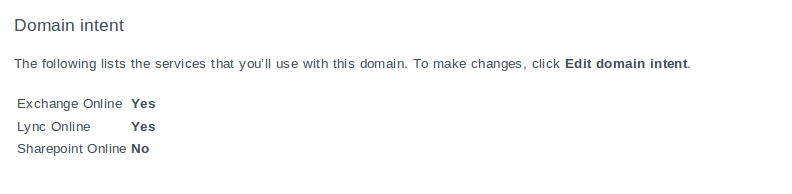
Sharepoint is giving me a bit of an issue that I have been trying to address with Microsoft, but they have been less than responsive. I hope this is not how small businesses can expect to be treated by Microsoft when this product goes live. It would certainly cause me to reconsider what I otherwise think is a pretty good product. Anyway, I believe I have the records defined properly, but I cannot verify them because I am unable to enable Sharepoint Online in my domain properties or intent ( I have added a screen shot of the issue at the bottom of this post.).

My company records (Sharepoint site):
sharepoint IN CNAME mycompany.sharepoint.com.
sp IN CNAME mycompany.sharepoint.com.

My public records (public Sharepoint site):
sharepoint-pub IN CNAME ProdNet11.SharePointOnline.com.
sp-pub IN CNAME ProdNet11.SharePointOnline.com.

I will update this when, I finally hear something from Microsoft.

Unable to enable Sharepoint

Here are the DNS settings as documented in Office365 for mydomain.com. This is the information Microsoft provides to help you add the appropriate records:

Office365 DNS Settings

Update 1/10/2012:
While trying out the Lync client on my iPhone, I discovered that I was missing another DNS record to support Lync server auto-discovery. I just needed to add the following record to my DNS:

lyncdiscover IN CNAME webdir.online.lync.com.

This allowed iPhone Lync clients to use the auto detect server feature. I suspect that this was needed for other clients too, since I had to set it up manually before. I am going to try this on MacOS later to see if that works better too.

Howto Join An Active Directory Server using RHEL5.x/CentOS5.x and Samba 3.0.x

I used the following procedure to join a simple Windows 2003 Active Directory.

Ensure that your time is synced with the ADS machines via ntp.conf.

I used the following to sync time to my NTP server:
# cat /etc/ntp.conf
restrict default kod nomodify notrap nopeer noquery

restrict 127.0.0.1
restrict -6 ::1

server 127.127.1.0
fudge 127.127.1.0 stratum 10

driftfile /var/lib/ntp/drift

keys /etc/ntp/keys

server ntp.domain.com
restrict ntp.domain.com mask 255.255.255.255 nomodify notrap noquery

Ensure that your name resolution is configured properly. If needed, modify via /etc/sysconfig/network with the fully qualified name. Also, the /etc/resolv.conf should use the same DNS servers that handle the dynamic updates for the ADS domain.

For example:
# hostname
rhel5.domain.local

# cat /etc/resolv.conf
search domain.local
nameserver 192.168.0.31
nameserver 192.168.0.32

Configure kerberos:

For example:
# cat /etc/krb5.conf
[logging]
default = FILE:/var/log/krb5libs.log
kdc = FILE:/var/log/krb5kdc.log
admin_server = FILE:/var/log/kadmind.log

[libdefaults]
default_realm = DOMAIN.LOCAL
dns_lookup_realm = false
dns_lookup_kdc = false
ticket_lifetime = 24h
forwardable = yes

[realms]
DOMAIN.LOCAL = {
kdc = pdc.domain.local:88
admin_server = pdc.domain.local:749
default_domain = domain.local
}

[domain_realm]
.domain.local = DOMAIN.LOCAL
domain.local = DOMAIN.LOCAL

[appdefaults]
pam = {
debug = false
ticket_lifetime = 36000
renew_lifetime = 36000
forwardable = true
krb4_convert = false
}

Test kerberos:
kinit -V administrator@DOMAIN.LOCAL

You should get the following kind of output:
Authenticated to Kerberos v5

Configure samba:
# cat /etc/samba/smb.conf
#GLOBAL PARAMETERS
[global]
workgroup = DOMAIN
realm = DOMAIN.LOCAL
preferred master = no
server string = Linux Test Machine
security = ADS
encrypt passwords = yes
log level = 3
log file = /var/log/samba/%m
max log size = 50
printcap name = cups
printing = cups
winbind enum users = Yes
winbind enum groups = Yes
winbind use default domain = Yes
winbind nested groups = Yes
winbind separator = +
idmap uid = 600-200000
idmap gid = 600-200000
;template primary group = “Domain Users”
template shell = /bin/bash

[homes]
comment = Home Direcotries
valid users = %S
read only = No
browseable = No

[printers]
comment = All Printers
path = /var/spool/cups
browseable = no
printable = yes
guest ok = yes

Use the testparm command to verify your samba configuration:
# testparm
Load smb config files from /etc/samba/smb.conf
Processing section “[homes]”
Processing section “[printers]”
Loaded services file OK.
‘winbind separator = +’ might cause problems with group membership.
Server role: ROLE_DOMAIN_MEMBER
Press enter to see a dump of your service definitions

Join the domain:
net ads join -U administrator

You will be prompted for the administrator password. If successful a message will be displayed stating as such.
For example:
Using short domain name – DOMAIN

Joined ‘RHEL5’ to realm ‘domain’

From here you can execute several commands to test:

# net ads testjoin DOMAIN
Join is OK

Start up the samba related services:

# service smb start
# service winbind start

The following will list both local user IDs and ADS user IDs:
# wbinfo -u

The will list ADS group names:
# wbinfo -g

The following will verify ADS authentication (In this example, “password” is the administrator account password.):
# wbinfo -a administrator%password
plaintext password authentication succeeded
challenge/response password authentication succeeded

Modify nsswitch.conf to support ADS authentication:
# cat /etc/nsswitch.conf
passwd: files winbind
shadow: files winbind
group: files winbind
hosts: files dns
bootparams: nisplus [NOTFOUND=return] files
ethers: files
netmasks: files
networks: files
protocols: files
rpc: files
services: files
netgroup: nisplus
publickey: nisplus
automount: files nisplus
aliases: files nisplus

This is very important. Make sure you are logged into a couple virtual terminals as root in case there is a problem. You can end up locking yourself out.

Make a backup copy of /etc/pam.d/system-auth-ac:
# cd /etc/pam.d
# cp -rp system-auth-ac system-auth-ac.orig

Edit the system-auth-ac file:
# cat /etc/pam.d/system-auth-ac
#%PAM-1.0
auth required pam_env.so
auth sufficient pam_unix.so likeauth nullok
auth sufficient pam_winbind.so use_first_pass
auth required pam_deny.so

account required pam_unix.so
account sufficient pam_succeed_if.so uid < 100 quiet account sufficient pam_winbind.so use_first_pass account required pam_permit.so password requisite pam_cracklib.so retry=3 type= password sufficient pam_unix.so nullok use_authtok md5 shadow password sufficient pam_winbind.so use_first_pass password required pam_deny.so session required pam_limits.so session required pam_unix.so session required pam_winbind.so use_first
Return top

INFORMATION