Format FAT32 in linux.
- December 2nd, 2011
- Write comment
I have found this very helpful when dealing with external drives to use in linux, MacOS or Windows:
mkfs.vfat -F32 /dev/sde1
Posts Tagged ‘linux’
I have found this very helpful when dealing with external drives to use in linux, MacOS or Windows:
mkfs.vfat -F32 /dev/sde1
Here I have chosen to use a separate zone file for my subdomain. This is not the only way to do this, but it is the way I did it. I did this in CentOs 5.x.
One using it own zone file:
vi /var/named/chroot/etc/named.conf
…
zone “mydomain.com” in {
type master;
file “mydomain.com.zone”;
allow-transfer { xxx.yyy.zzz.aaa ; bbb.ccc.ddd.eee ; };
};
// Begin MyDomain.com Subdomains
zone “subdomain.mydomain.com” in {
type master;
file “subdomain.mydomain.com.zone”;
allow-transfer { xxx.yyy.zzz.aaa ; bbb.ccc.ddd.eee; };
};
// End MyDomain.com Subdomains
…
vi /var/named/chroot/var/named/subdomain.mydomain.com.zone
$ORIGIN .
$TTL 86400 ; 1 day
subdomain.mydomain.com IN SOA ns1.subdomain.mydomain.com. root.localhost.subdomain.mydomain.com. (
201002224 ; serial
7200 ; refresh (8 hours)
7200 ; retry (2 hours)
604800 ; expire (1 week)
86400 ; minimum (1 day)
)
$ORIGIN subdomain.mydomain.com.
NS ns1.subdomain.mydomain.com.
NS ns2.subdomain.mydomain.com.
IN MX 10 mail1.subdomain.mydomain.com.
IN MX 20 mail2.subdomain.mydomain.com.
IN A xxx.yyy.zzz.aaa
ns1 IN A xxx.yyy.zzz.aaa
ns2 IN A bbb.ccc.ddd.eee
mail1 IN A xxx.yyy.zzz.aaa
mail2 IN A bbb.ccc.ddd.eee
host1 IN A xxx.yyy.zzz.aaa
host2 IN CNAME host1.subdomain.mydomain.com.
I have spending quite a bit of time recently playing with Microsoft’s Office365. I have been interested in how to manage the DNS records in my linux DNS to support Office365. For example, I wanted to access my Office365 email, Lync server, and Sharepoint via my specified hostnames as defined in my DNS. Email was simple enough. Setting up these records got the email to my domain directed properly, and I was able to use auto discover to configure my iPhone, android device and desktop computer email clients easily. I have listed the key records below:
mydomain.com. 360 IN TXT “v=spf1 include:outlook.com ~all”
$ORIGIN mydomain.com.
@ IN MX 0 mydomain-com.mail.eo.outlook.com.
ms49911282 IN CNAME ps.microsoftonline.com.
autodiscover IN CNAME autodiscover.outlook.com.
Lync presented a bit more of challenge. And I found several sources on the Internet of people trying to get the records set up properly, but all of them seemed to have something wrong. Ultimately, these are the records that I had to add to access my Office365 Lync server. The lesson learned from setting these records should help records that Active Directory requires that I have never had occasion to look at before.
_sip._tls IN SRV 100 1 443 sipdir.online.lync.com.
_sipfederationtls._tcp IN SRV 100 1 5061 sipfed.online.lync.com.
Sharepoint is giving me a bit of an issue that I have been trying to address with Microsoft, but they have been less than responsive. I hope this is not how small businesses can expect to be treated by Microsoft when this product goes live. It would certainly cause me to reconsider what I otherwise think is a pretty good product. Anyway, I believe I have the records defined properly, but I cannot verify them because I am unable to enable Sharepoint Online in my domain properties or intent ( I have added a screen shot of the issue at the bottom of this post.).
My company records (Sharepoint site):
sharepoint IN CNAME mycompany.sharepoint.com.
sp IN CNAME mycompany.sharepoint.com.
My public records (public Sharepoint site):
sharepoint-pub IN CNAME ProdNet11.SharePointOnline.com.
sp-pub IN CNAME ProdNet11.SharePointOnline.com.
I will update this when, I finally hear something from Microsoft.
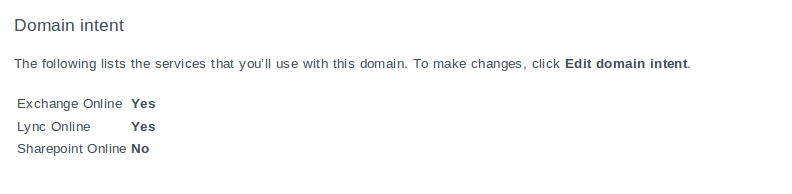
Here are the DNS settings as documented in Office365 for mydomain.com. This is the information Microsoft provides to help you add the appropriate records:

Update 1/10/2012:
While trying out the Lync client on my iPhone, I discovered that I was missing another DNS record to support Lync server auto-discovery. I just needed to add the following record to my DNS:
lyncdiscover IN CNAME webdir.online.lync.com.
This allowed iPhone Lync clients to use the auto detect server feature. I suspect that this was needed for other clients too, since I had to set it up manually before. I am going to try this on MacOS later to see if that works better too.
Say you happened remove a disk from your RHEL/CentOS/Fedora system and left the entry to mount a partition in the fstab and rebooted. Well, you end up at a prompt for your root password and dropped into single user mode to resolve the problem before the system can boot up. I used to be able to just mount the root partition writeable by using any number of commands including “mount /” or “mount -rw /”. However, somewhere along the line that changed and those commands would not mount the filesystem as writeable. To workaround the issue, I previously used a distribution rescue disk or booted the distribution disk into rescue mode. Then, I would edit the fstab from rescue mode:
I usually chrooted the system disk:
chroot /mnt/sysimage
And then to make the changes:
vi /etc/fstab
I knew there had to be a better, more efficient way to do this, but just never took the time to figure out what is was, until now.
If you find yourself in similar situation, and need to edit a file or make some other changes to the filesystem from single user mode, this will do the trick:
mount -w -o remount /
Then, you can edit the fstab that you forgot to before carelessly removing that hard drive.
I started getting the following errors every night when the /var partition backed up on one of my CentOS 5 servers.
DUMP: read error from /dev/sda5: Input/output error: [block 4125240, ext2blk 0]: count=515655
DUMP: read error from /dev/sda5: Input/output error: [block 4125252, ext2blk 0]: count=515656
DUMP: read error from /dev/sda5: Input/output error: [sector 4125240, ext2blk 0]: count=515655
DUMP: read error from /dev/sda5: Input/output error: [sector 4125252, ext2blk 0]: count=515656
DUMP: read error from /dev/sda5: Input/output error: [sector 4125241, ext2blk 0]: count=515655
DUMP: read error from /dev/sda5: Input/output error: [sector 4125253, ext2blk 0]: count=515656
DUMP: read error from /dev/sda5: Input/output error: [sector 4125242, ext2blk 0]: count=515655
DUMP: read error from /dev/sda5: Input/output error: [sector 4125254, ext2blk 0]: count=515656
DUMP: read error from /dev/sda5: Input/output error: [sector 4125243, ext2blk 0]: count=515655
DUMP: read error from /dev/sda5: Input/output error: [sector 4125255, ext2blk 0]: count=515656
DUMP: read error from /dev/sda5: Input/output error: [sector 4125244, ext2blk 0]: count=515655
DUMP: read error from /dev/sda5: Input/output error: [sector 4125245, ext2blk 0]: count=515655
DUMP: read error from /dev/sda5: Input/output error: [sector 4125246, ext2blk 0]: count=515655
DUMP: read error from /dev/sda5: Input/output error: [sector 4125247, ext2blk 0]: count=515655
Also, I found the following kinds of message in the messages file:
May 7 02:34:37 white1 kernel: ata1.00: exception Emask 0x0 SAct 0x0 SErr 0x0 action 0x0
May 7 02:34:37 white1 kernel: ata1.00: BMDMA stat 0x24
May 7 02:34:37 white1 kernel: ata1.00: cmd c8/00:50:ea:9f:03/00:00:00:00:00/e3 tag 0 dma 40960 in
May 7 02:34:37 white1 kernel: res 51/40:00:08:a0:03/00:00:00:00:00/03 Emask 0x9 (media error)
May 7 02:34:37 white1 kernel: ata1.00: status: { DRDY ERR }
May 7 02:34:37 white1 kernel: ata1.00: error: { UNC }
May 7 02:34:37 white1 kernel: ata1.00: configured for UDMA/133
May 7 02:34:37 white1 kernel: ata1: EH complete
May 7 02:34:40 white1 kernel: ata1.00: exception Emask 0x0 SAct 0x0 SErr 0x0 action 0x0
May 7 02:34:40 white1 kernel: ata1.00: BMDMA stat 0x24
May 7 02:34:40 white1 kernel: ata1.00: cmd c8/00:50:ea:9f:03/00:00:00:00:00/e3 tag 0 dma 40960 in
May 7 02:34:40 white1 kernel: res 51/40:00:08:a0:03/00:00:00:00:00/03 Emask 0x9 (media error)
May 7 02:34:40 white1 kernel: ata1.00: status: { DRDY ERR }
From single user mode with /var dismounted, I ran the following:
# e2fsck -c /dev/sda5
I wish I had kept the output, but I know I accepted the defaults ( “Y” ) for all the prompts or which their were a couple. After it completed, I ran dump that completed without error. We will see how it goes from here. According to the man page, any bad blocks found using this command are added to the bad block inode so that they are used by any files or directories.
On a linux DHCP server, you can add the following linke to dhcpd.conf file to display the vendor-class-identifier of DHCP clients:
set vendor-string = option vendor-class-identifier;
I added this towards the top of my configuration in both version 3 and version 4 DHCP server installations. I did notice that not all clients report the information back. For instance, some Wyse clients. You find the information in the dhcpd.leases database file on the server.
Used the following to modify the shmmax kernel parameter in Fedora 13 after updating postgresql on a machine running WiKID for two-factor authentication.
Modifies the parameter:
# sysctl -w kernel.shmmax=67108864
Changes the parameter so a reboot is not required.
# sysctl -p /etc/sysctl.conf
To keep the new setting after rebooting:
# vi /etc/sysctl.conf
…
kernel.shmmax=67108864
…
I used this procedure to add swap space to a server, where I not more available partitions, but had space on a previously formated partition.
# mkdir /var/swap
Create container files:
# dd if=/dev/zero of=/var/swap/swapfile1 bs=1024 count=65536
# dd if=/dev/zero of=/var/swap/swapfile2 bs=1024 count=65536
# dd if=/dev/zero of=/var/swap/swapfile3 bs=1024 count=65536
# dd if=/dev/zero of=/var/swap/swapfile4 bs=1024 count=65536
Format as swap:
# mkswap /var/swap/swapfile1
# mkswap /var/swap/swapfile2
# mkswap /var/swap/swapfile3
# mkswap /var/swap/swapfile4
Add them to startup:
# vi /etc/fstab
…
/var/swap/swapfile1 swap swap defaults 0 0
/var/swap/swapfile2 swap swap defaults 0 0
/var/swap/swapfile3 swap swap defaults 0 0
/var/swap/swapfile4 swap swap defaults 0 0
…
Enable them:
# swapon -a
Check them:
# swapon -sh
I used the following procedure to join a simple Windows 2003 Active Directory.
Ensure that your time is synced with the ADS machines via ntp.conf.
I used the following to sync time to my NTP server:
# cat /etc/ntp.conf
restrict default kod nomodify notrap nopeer noquery
restrict 127.0.0.1
restrict -6 ::1
server 127.127.1.0
fudge 127.127.1.0 stratum 10
driftfile /var/lib/ntp/drift
keys /etc/ntp/keys
server ntp.domain.com
restrict ntp.domain.com mask 255.255.255.255 nomodify notrap noquery
Ensure that your name resolution is configured properly. If needed, modify via /etc/sysconfig/network with the fully qualified name. Also, the /etc/resolv.conf should use the same DNS servers that handle the dynamic updates for the ADS domain.
For example:
# hostname
rhel5.domain.local
# cat /etc/resolv.conf
search domain.local
nameserver 192.168.0.31
nameserver 192.168.0.32
Configure kerberos:
For example:
# cat /etc/krb5.conf
[logging]
default = FILE:/var/log/krb5libs.log
kdc = FILE:/var/log/krb5kdc.log
admin_server = FILE:/var/log/kadmind.log
[libdefaults]
default_realm = DOMAIN.LOCAL
dns_lookup_realm = false
dns_lookup_kdc = false
ticket_lifetime = 24h
forwardable = yes
[realms]
DOMAIN.LOCAL = {
kdc = pdc.domain.local:88
admin_server = pdc.domain.local:749
default_domain = domain.local
}
[domain_realm]
.domain.local = DOMAIN.LOCAL
domain.local = DOMAIN.LOCAL
[appdefaults]
pam = {
debug = false
ticket_lifetime = 36000
renew_lifetime = 36000
forwardable = true
krb4_convert = false
}
Test kerberos:
kinit -V administrator@DOMAIN.LOCAL
You should get the following kind of output:
Authenticated to Kerberos v5
Configure samba:
# cat /etc/samba/smb.conf
#GLOBAL PARAMETERS
[global]
workgroup = DOMAIN
realm = DOMAIN.LOCAL
preferred master = no
server string = Linux Test Machine
security = ADS
encrypt passwords = yes
log level = 3
log file = /var/log/samba/%m
max log size = 50
printcap name = cups
printing = cups
winbind enum users = Yes
winbind enum groups = Yes
winbind use default domain = Yes
winbind nested groups = Yes
winbind separator = +
idmap uid = 600-200000
idmap gid = 600-200000
;template primary group = “Domain Users”
template shell = /bin/bash
[homes]
comment = Home Direcotries
valid users = %S
read only = No
browseable = No
[printers]
comment = All Printers
path = /var/spool/cups
browseable = no
printable = yes
guest ok = yes
Use the testparm command to verify your samba configuration:
# testparm
Load smb config files from /etc/samba/smb.conf
Processing section “[homes]”
Processing section “[printers]”
Loaded services file OK.
‘winbind separator = +’ might cause problems with group membership.
Server role: ROLE_DOMAIN_MEMBER
Press enter to see a dump of your service definitions
…
Join the domain:
net ads join -U administrator
You will be prompted for the administrator password. If successful a message will be displayed stating as such.
For example:
Using short domain name – DOMAIN
Joined ‘RHEL5’ to realm ‘domain’
From here you can execute several commands to test:
# net ads testjoin DOMAIN
Join is OK
Start up the samba related services:
# service smb start
# service winbind start
The following will list both local user IDs and ADS user IDs:
# wbinfo -u
The will list ADS group names:
# wbinfo -g
The following will verify ADS authentication (In this example, “password†is the administrator account password.):
# wbinfo -a administrator%password
plaintext password authentication succeeded
challenge/response password authentication succeeded
Modify nsswitch.conf to support ADS authentication:
# cat /etc/nsswitch.conf
passwd: files winbind
shadow: files winbind
group: files winbind
hosts: files dns
bootparams: nisplus [NOTFOUND=return] files
ethers: files
netmasks: files
networks: files
protocols: files
rpc: files
services: files
netgroup: nisplus
publickey: nisplus
automount: files nisplus
aliases: files nisplus
This is very important. Make sure you are logged into a couple virtual terminals as root in case there is a problem. You can end up locking yourself out.
Make a backup copy of /etc/pam.d/system-auth-ac:
# cd /etc/pam.d
# cp -rp system-auth-ac system-auth-ac.orig
Edit the system-auth-ac file:
# cat /etc/pam.d/system-auth-ac
#%PAM-1.0
auth required pam_env.so
auth sufficient pam_unix.so likeauth nullok
auth sufficient pam_winbind.so use_first_pass
auth required pam_deny.so
account required pam_unix.so
account sufficient pam_succeed_if.so uid < 100 quiet
account sufficient pam_winbind.so use_first_pass
account required pam_permit.so
password requisite pam_cracklib.so retry=3 type=
password sufficient pam_unix.so nullok use_authtok md5 shadow
password sufficient pam_winbind.so use_first_pass
password required pam_deny.so
session required pam_limits.so
session required pam_unix.so
session required pam_winbind.so use_first
I was able to use the following iptables configuration to NAT from a linux virtual interface (eth1:1) to an email/web server on my LAN (192.168.0.x). virt_ip_addr is the IP address I assigned to eth1:1, and 192.168.0.6 is the IP address of the server on my LAN. This works with both INPUT and FORWARD chains set to DROP.
This may not be the best solution, but it took quite a while to figure out how get something in place that works.
######################
# nat PREROUTING Chain Rules
######################
-A PREROUTING -d virt_ip_addr -p tcp –dport 25 -j DNAT –to 192.168.0.6:25
-A PREROUTING -d virt_ip_addr -p tcp –dport 80 -j DNAT –to 192.168.0.6:80
######################
# nat POSTROUTING Chain Rules
######################
-A POSTROUTING -o eth1 -j SNAT –to-source virt_ip_addr
######################
# filter FORWARD Chain Rules
######################
-A FORWARD -p tcp -i eth0 -o eth1 -s 192.168.0.6 -m multiport –sports 25 -j ACCEPT
-A FORWARD -p tcp -i eth1 -o eth0 -d 192.168.0.6 -m multiport –dports 25 -m state –state NEW -j ACCEPT
-A FORWARD -p tcp -i eth1 -o eth0 -d 192.168.0.6 -m multiport –dports 25 -j ACCEPT
-A FORWARD -p tcp -i eth0 -o eth1 -s 192.168.0.6 -m multiport –sports 80 -j ACCEPT
-A FORWARD -p tcp -i eth1 -o eth0 -d 192.168.0.6 -m multiport –dports 80 -m state –state NEW -j ACCEPT
-A FORWARD -p tcp -i eth1 -o eth0 -d 192.168.0.6 -m multiport –dports 80 -j ACCEPT